 LENGO
 App
 Languages
 Stories
 Become a creator
 Featuring program
 Affiliate program
 Beta program
 one sec × LENGO
 Contact & help
 About LENGO
 Team & jobs
 Press kit
 Privacy
 Terms
Change Your Language in all Apps
 Amelia
October 20, 2021 · 2 min read
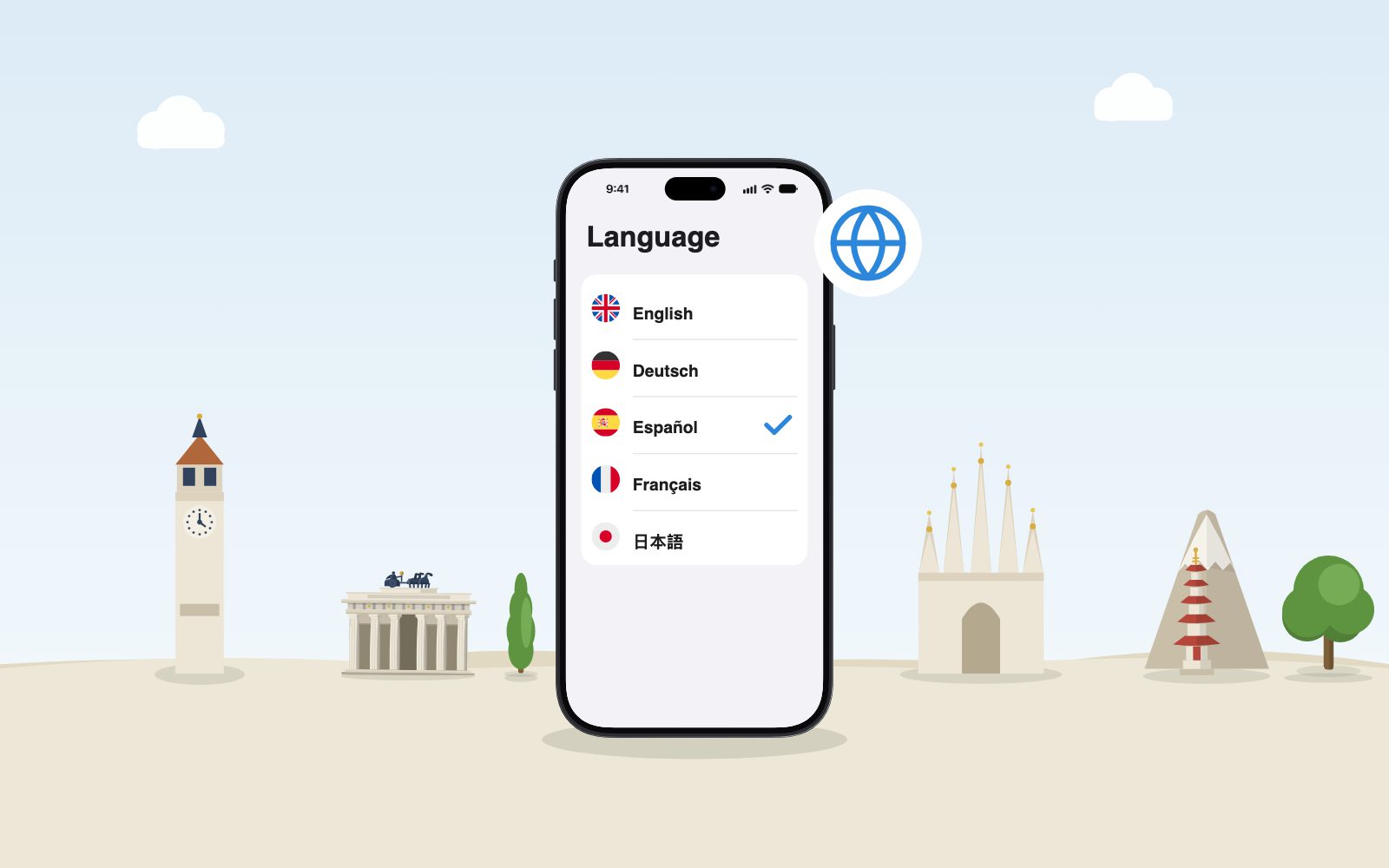
Use specific apps in the language you want to learn.
With iOS 15, you can change the language for different apps without changing your iPhone language. The function is suitable if you want to use certain apps to become familiar with a language. So we recommend if you are already advanced to set your news app in the language you are learning. You can also switch other apps, such as social media, to a different language. You can get used to the language in your day-to-day life.
We recommend using the setting to change languages in specific apps for beginners or a little more advanced learners. Often you are advised to change the device language, but this can make life difficult for beginners. It is essential to have a good understanding of what actions you perform. You don't want to misunderstand your banking apps.
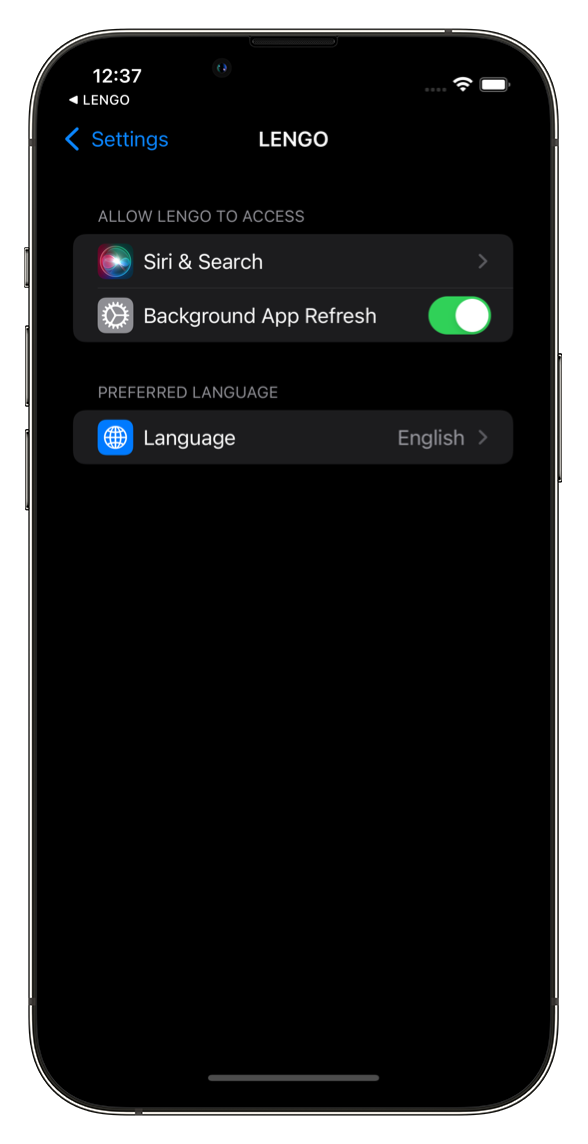
Change the source language with LENGO
After you have configured your device in the language you are learning. Now you can change back to your original native language in LENGO without changing the device language. This feature allows you to continue using your phone in the language you are learning. You can still use LENGO to learn new vocabulary. This feature is particularly suited for advanced learners.
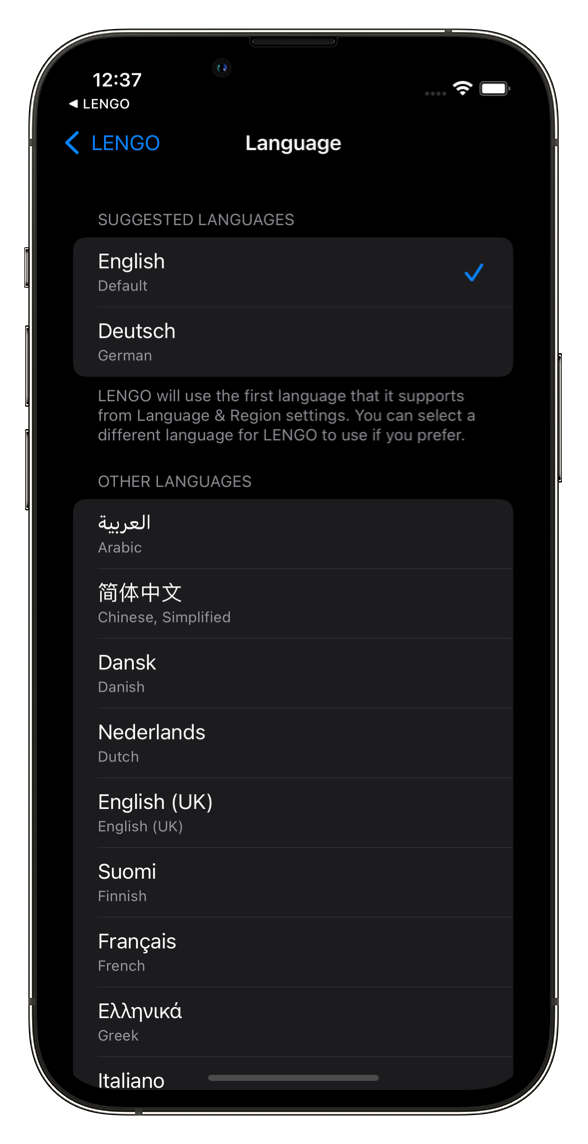
You can use this feature by opening the setting and then finding LENGO there. Then set your language under the LENGO menu. You can then learn new vocabulary from your mother tongue. However, the device language settings are not affected.
Changing the source language of your device is a powerful tool for getting used to a language. However, we suggest different settings for different language levels. The possibility to change the language in some apps and keep it native in other apps enables an individual configuration.